This map displays zoning information and other related layers, such as flood zones, landuse, etc.
This map has a number of different tools and features available:
Layers and Legend
In the left panel, you will see a list of layers available in the map. By clicking the eye icon next to each layer, you can toggle them on and off. Next to the layer list is a legend showing the currently visible layers and how they are represented in the map.
Search
In the upper-left of the page is the Search Bar.
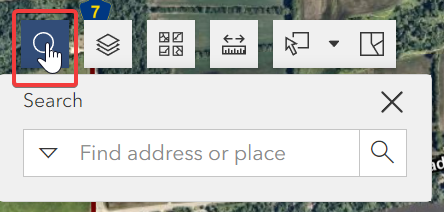
Begin typing, and the search tool will auto-suggest features that match your search.
You can search by PIN and Address.
Basemaps
Next to search icon is the Basemaps tool.
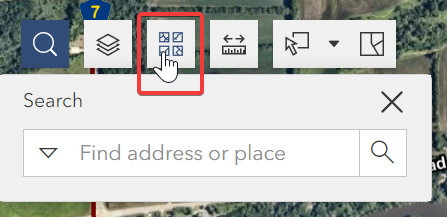
This gives you the ability to toggle the basemap currently displayed.
There are a variety of maps available, from prior years’ imagery to historic plat maps.
Measure
The last tool in the upper-left is the Measure tool.
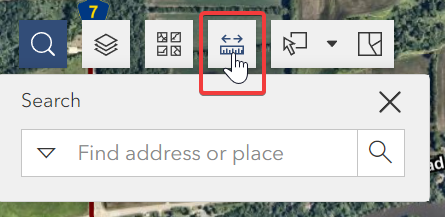
With this tool active, click on the map to begin drawing the line or area you wish to measure. Double-click to finish your drawing.
You can set the measurement units at any time; the label will automatically update to reflect your choice.
Other Tips
The side panel can be re-sized by clicking and dragging divider bar. This can help adjust the app to your screen size.